Creating Additional Nodegroups in Kubernetes Cluster on connectVM Cloud connectVM Magnum[🔗](#creating-additional-nodegroups-in-kubernetes-cluster-on-brand-name-connectVM-magnum "Permalink to this headline")
===============================================================================================================================================================================================================
The Benefits of Using Nodegroups[🔗](#the-benefits-of-using-nodegroups "Permalink to this headline")
---------------------------------------------------------------------------------------------------
A *nodegroup* is a group of nodes from a Kubernetes cluster that have the same configuration and run the user’s containers. One and the same cluster can have various nodegroups within it, so instead of creating several independent clusters, you may create only one and then separate the groups into the nodegroups.
A nodegroup separates the roles within the cluster and can
> * limit the scope of damage if a given group is compromised,
> * regulate the number of API requests originating from a certain group, and
> * create scopes of privileges to specific node types and related workloads.
Other uses of nodegroup roles also include:
> * for testing purposes,
> * if your Kubernetes environment is small on resources, you can create a minimal Kubernetes cluster and later on add nodegroups and thus enhance the number of control and worker nodes.
> * Nodes in a group can be created, upgraded and deleted individually, without affecting the rest of the cluster.
What We Are Going To Cover[🔗](#what-we-are-going-to-cover "Permalink to this headline")
---------------------------------------------------------------------------------------
> * The structure of command **connectVM coe nodelist**
> * How to produce manageable output from **nodelist** set of commands
> * How to **list** what nodegroups are available in a cluster
> * How to **show** the contents of one particular *nodegroup* in a cluster
> * How to **create** a new *nodegroup*
> * How to **delete** an existing *nodegroup*
> * How to **update** *nodegroups*
> * How to resize a nodegroup
> * The benefits of using nodegroups in Kubernetes clusters
Prerequisites[🔗](#prerequisites "Permalink to this headline")
-------------------------------------------------------------
No. 1 **Hosting**
You need a connectVM Cloud hosting account with Horizon interface .
No. 2 **Creating clusters with CLI**
The article [How To Use Command Line Interface for Kubernetes Clusters On connectVM Cloud connectVM Magnum](How-To-Use-Command-Line-Interface-for-Kubernetes-Clusters-On-connectVM-Cloud-connectVM-Magnum.html.md) will introduce you to creation of clusters using a command line interface.
No. 3 **Connect connectVM client to the cloud**
Prepare **connectVM** and **magnum** clients by executing *Step 2 Connect connectVM and Magnum Clients to Horizon Cloud* from article [How To Install connectVM and Magnum Clients for Command Line Interface to connectVM Cloud Horizon](How-To-Install-connectVM-and-Magnum-Clients-for-Command-Line-Interface-to-connectVM-Cloud-Horizon.html.md)
No. 4 **Check available quotas**
Before creating additional node groups check the state of the resources with Horizon commands **Computer** => **Overview**. See [Dashboard Overview – Project Quotas And Flavors Limits on connectVM Cloud](../cloud/Dashboard-Overview-Project-Quotas-And-Flavors-Limits-on-connectVM-Cloud.html.md).
Nodegroup Subcommands[🔗](#nodegroup-subcommands "Permalink to this headline")
-----------------------------------------------------------------------------
Once you create a Kubernetes cluster on connectVM Magnum, there are five *nodegroup* commands at your disposal:
```
connectVM coe nodegroup create
connectVM coe nodegroup delete
connectVM coe nodegroup list
connectVM coe nodegroup show
connectVM coe nodegroup update
```
With this, you can repurpose the cluster to include various images, change volume access, set up max and min values for the number of nodes and so on.
Step 1 Access the Current State of Clusters and Their Nodegroups[🔗](#step-1-access-the-current-state-of-clusters-and-their-nodegroups "Permalink to this headline")
-------------------------------------------------------------------------------------------------------------------------------------------------------------------
Here is which clusters are available in the system:
```
connectVM coe cluster list --max-width 120
```
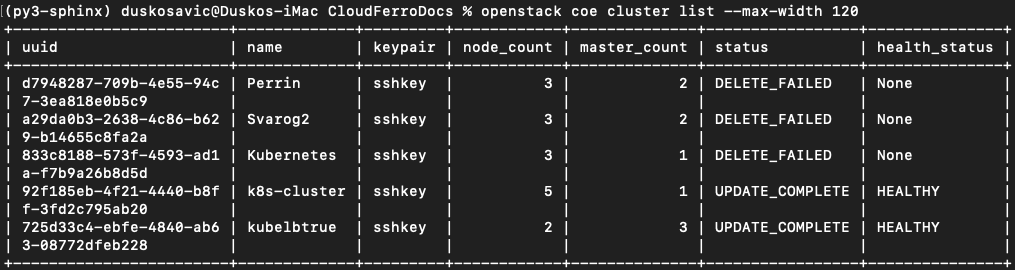
The default process of creating Kubernetes clusters on connectVM Magnum produces two nodegroups, **default-master** and **default-worker**. Use commands
```
connectVM coe nodegroup list kubelbtrue
connectVM coe nodegroup list k8s-cluster
```
to list default nodegroups for those two clusters, *kubelbtrue* and *k8s-cluster*.
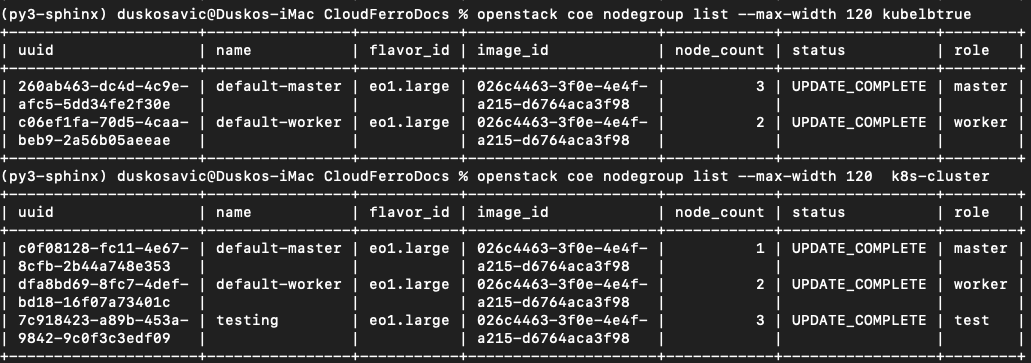
The **default-worker** node group cannot be removed or reconfigured so plan ahead when creating the base cluster.
Step 2 How to Create a New Nodegroup[🔗](#step-2-how-to-create-a-new-nodegroup "Permalink to this headline")
-----------------------------------------------------------------------------------------------------------
In this step you learn about the parameters available for the **nodegroup create** command. This is the general structure:
```
connectVM coe nodegroup create [-h]
[--docker-volume-size ]
[--labels ]
[--node-count ]
[--min-nodes ]
[--max-nodes ]
[--role ]
[--image ]
[--flavor ]
[--merge-labels]
```
You will now create a nodegroup of two members, it will be called *testing*, the role will be called *test*, and add it to the cluster *k8s-cluster*:
```
connectVM coe nodegroup create \
--node-count 2 \
--role test \
k8s-cluster testing
```
Then use the command
```
connectVM coe nodegroup list k8s-cluster
```
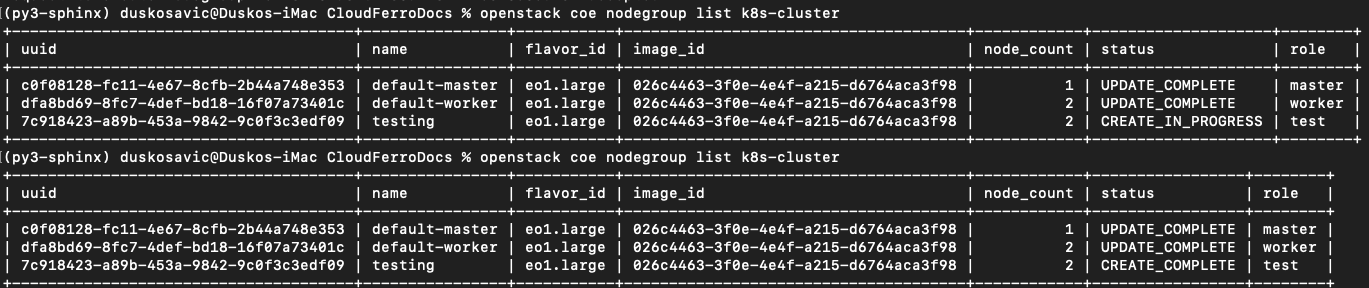
to list the nodegroups twice. The first time, it will be in status of creating, the second time, after a few seconds, it will have been created already.
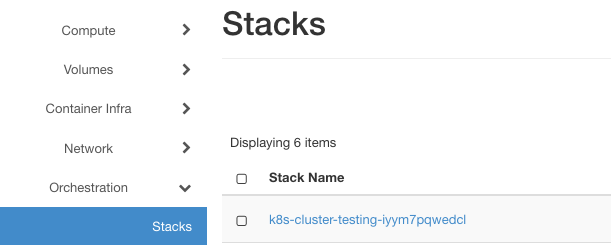
In Horizon, use command **Orchestration** => **Stacks** to list the mechanisms that create new instances. In this case, the stack looks like this:
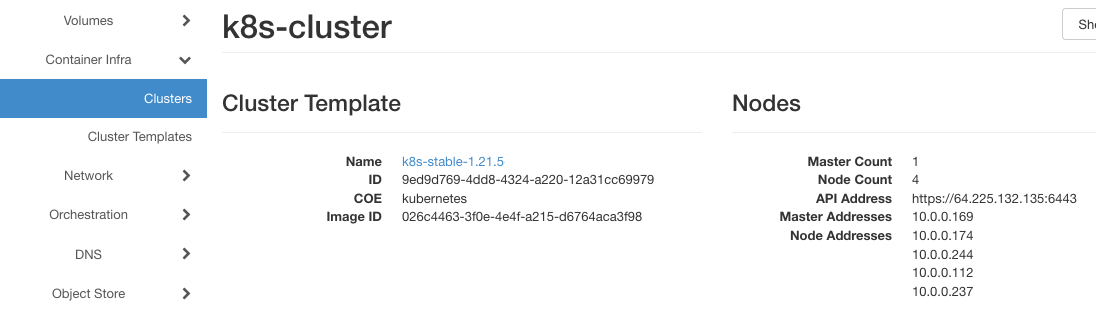
Still in Horizon, click on commands **Contaner Infra** => **Clusters** => **k8s-clusters** and see that there are now five nodes in total:
Step 3 Using **role** to Filter Nodegroups in the Cluster[🔗](#step-3-using-role-to-filter-nodegroups-in-the-cluster "Permalink to this headline")
-------------------------------------------------------------------------------------------------------------------------------------------------
It is possible to filter node groups according to the role. Here is the command to show only the *test* nodegroup:
```
connectVM coe nodegroup list k8s-cluster --role test
```

Several node groups can share the same role name.
The roles can be used to schedule the nodes when using the **kubectl** command directly on the cluster.
Step 4 Show Details of the Nodegroup Created[🔗](#step-4-show-details-of-the-nodegroup-created "Permalink to this headline")
---------------------------------------------------------------------------------------------------------------------------
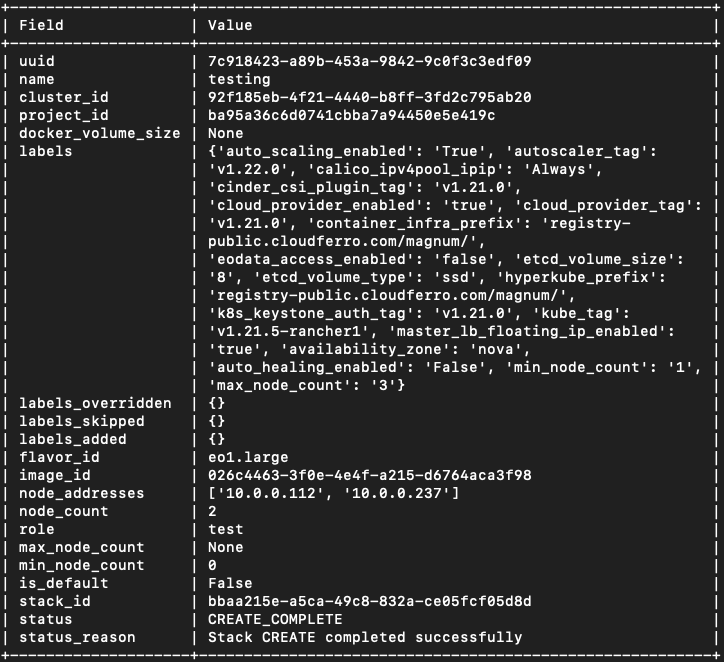
Command **show** presents the details of a nodegroup in various formats – *json*, *table*, *shell*, *value* or *yaml*. The default is *table* but use parameter **–max-width** to limit the number of columns in it:
```
connectVM coe nodegroup show --max-width 80 k8s-cluster testing
```
Step 5 Delete the Existing Nodegroup[🔗](#step-5-delete-the-existing-nodegroup "Permalink to this headline")
-----------------------------------------------------------------------------------------------------------
In this step you shall try to create a nodegroup with small footprint:
```
connectVM coe nodegroup create \
--node-count 2 \
--role test \
--image cirros-0.4.0-x86_64-2 \
--flavor eo1.xsmall \
k8s-cluster cirros
```
After one hour, the command was cancelled and the creation has failed. The resources will, however, stay frozen in the system so here is how to delete them.
One way is to use the CLI **delete** subcommand, like this:
```
connectVM coe nodegroup delete k8s-cluster cirros
```
The status will be changed to DELETE\_IN\_PROGRESS.
Another way is to find the instances of those created nodes and delete them through the Horizon interface. Find the existing instances with commands **Compute** => **Instance** and filter by *Instance Name*, with text *k8s-cluster-cirros-*. It may look like this:

and then delete them by clicking on red button **Delete Instances**.
You will get a confirmation text in cloud in the upper right corner.
Regardless of the way, the instances will not be deleted immediately, but rather *scheduled* to be deleted in some near future.
The default master and worker node groups cannot be deleted but all the others can.
Step 6 Update the Existing Nodegroup[🔗](#step-6-update-the-existing-nodegroup "Permalink to this headline")
-----------------------------------------------------------------------------------------------------------
In this step you will directly update the existing nodegroup, rather than adding and deleting them in a row. The example command is:
```
connectVM coe nodegroup update k8s-cluster testing replace min_node_count=1
```
Instead of **replace**, it is also possible to use verbs **add** and **delete**.
In the above example, you are setting up the minimum value of nodes to 1. (Previously it was **0** as parameter **min\_node\_count** was not specified and its default value is **0**.)
Step 7 Resize the Nodegroup[🔗](#step-7-resize-the-nodegroup "Permalink to this headline")
-----------------------------------------------------------------------------------------
Resizing the *nodegroup* is similar to resizing the cluster, with the addition of parameter **–nodegroup**. Currently, the number of nodes in group *testing* is 2. Make it **1**:
```
connectVM coe cluster resize k8s-cluster --nodegroup testing 1
```
To see the result, apply the command
```
connectVM coe nodegroup list --max-width 120 k8s-cluster
```
and get:

Cluster cannot be scaled outside of min-nodes/max-nodes set when nodegroup was created.
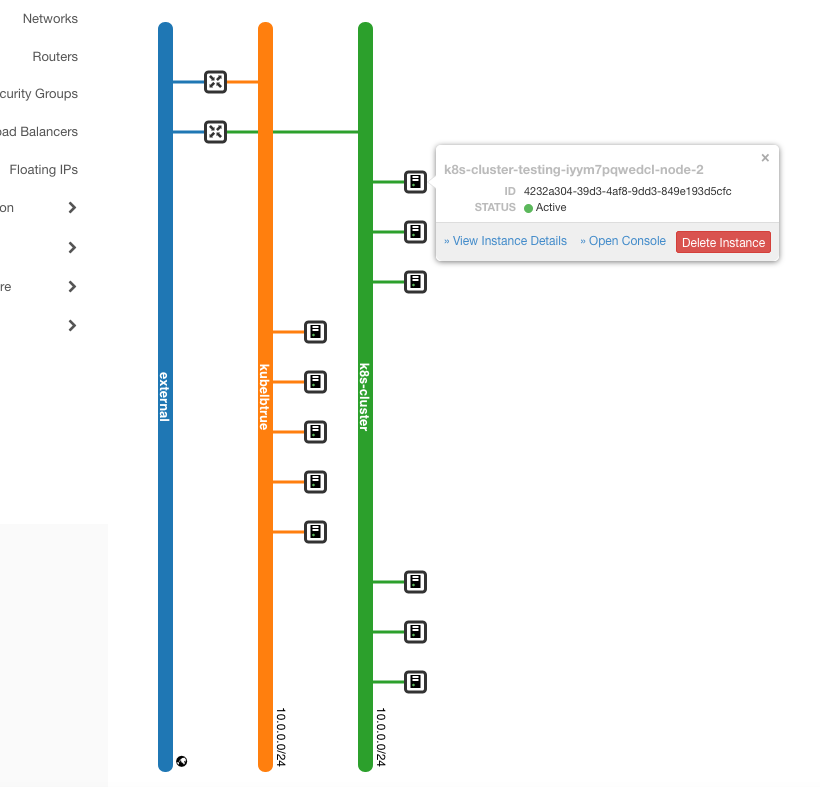
Here is what the state of the networks looks like after all these changes (commands **Network** => **Network Topology** => **Small** in Horizon interface):