How To Create API Server LoadBalancer for Kubernetes Cluster on connectVM Cloud connectVM Magnum[🔗](#how-to-create-api-server-loadbalancer-for-kubernetes-cluster-on-brand-name-connectVM-magnum "Permalink to this headline")
===============================================================================================================================================================================================================================
Load balancer can be understood both as
> * an external IP address through which the network / Internet traffic is coming into the Kubernetes cluster as well as
> * the piece of software that decides to which of the master nodes to send the incoming traffic.
There is an option to create load balancer while creating the Kubernetes cluster but you can also create it without. This article will show you how to access the cluster even if you did not specify load balancer at the creation time.
What We Are Going To Do[🔗](#what-we-are-going-to-do "Permalink to this headline")
---------------------------------------------------------------------------------
> * Create a cluster called NoLoadBalancer with one master node and no load balancer
> * Assign floating IP address to its master node
> * Create *config* file to access the cluster
> * In that *config* file, swap local server address with the actual floating IP of the master node
> * Use parameter **–insecure-skip-tls-verify=true** to override server security
> * Verify that **kubectl** is working normally, which means that you have full access to the Kubernetes cluster
Prerequisites[🔗](#prerequisites "Permalink to this headline")
-------------------------------------------------------------
No. 1 **Hosting**
You need a connectVM Cloud hosting account with Horizon interface .
No. 2 **Installation of the connectVM command**
To activate **kubectl** command, the connectVM command from CLI connectVM Interface must be operational. The first part of article [How To Use Command Line Interface for Kubernetes Clusters On connectVM Cloud connectVM Magnum](How-To-Use-Command-Line-Interface-for-Kubernetes-Clusters-On-connectVM-Cloud-connectVM-Magnum.html.md) shows how to install it.
No. 3 **How to create Kubernetes cluster using Horizon commands**
The article [How to Create a Kubernetes Cluster Using connectVM Cloud connectVM Magnum](How-to-Create-a-Kubernetes-Cluster-Using-connectVM-Cloud-connectVM-Magnum.html.md) shows creation of clusters with Horizon visual interface. (In this article, you shall use it to create an exemplar cluster called *NoLoadBalancer*.)
No. 4 **Connect to the Kubernetes Cluster in Order to Use kubectl**
Article [How To Access Kubernetes Cluster Post Deployment Using Kubectl On connectVM Cloud connectVM Magnum](How-To-Access-Kubernetes-Cluster-Post-Deployment-Using-Kubectl-On-connectVM-Cloud-connectVM-Magnum.html.md) will show you how to connect your local machine to the existing Kubernetes cluster.
How To Enable or Disable Load Balancer for Master Nodes[🔗](#how-to-enable-or-disable-load-balancer-for-master-nodes "Permalink to this headline")
-------------------------------------------------------------------------------------------------------------------------------------------------
A default state for the Kubernetes cluster in connectVM Cloud connectVM Magnum hosting is to have no load balancer set up in advance. You can decide to have a load balancer created together with the basic Kubernetes cluster by checking on option **Enable Load Balancer for Master Nodes** in window **Network** when creating a cluster through Horizon interface. (See **Prerequisite No. 3** for the complete procedure.)
The check box to enable load balancer for master nodes has two completely different meanings when checked and not checked.
**Checked state**

If **checked**, the load balancer for master nodes will be created. If you specified two or more master nodes in previous screens, then this field **must** be checked.
Regardless of the number of master nodes you have specified, checking this field on yields higher chances of successfully creating the Kubernetes cluster.
**Non-checked state**

If you accept the default state of **unchecked**, no load balancer will be created. However, without any load balancer “in front” of the cluster, the cluster API is being exposed only within the Kubernetes network. You save on the existence of the load balancer but the direct connection from local machine to the cluster is lost.
One Master Node, No Load Balancer and the Problem It All Creates[🔗](#one-master-node-no-load-balancer-and-the-problem-it-all-creates "Permalink to this headline")
------------------------------------------------------------------------------------------------------------------------------------------------------------------
To show exactly what the problem is, use
> * Prerequisite No. 2 to install connectVM client for the local machine, so that you can use the **connectVM** command.
> * Then use Prerequisite No. 4 to connect to the connectVM cloud and start using **connectVM** command from the local terminal.
Then you can try a very usual command such as
```
kubectl get nodes
```
but it will not work. If there were load balancer “in front of the cluster”, it would work, but here there isn’t so it won’t. The rest of this article will show you how to still make it work, using the fact that the master node of the cluster has its own load balancer for kube-api.
Step 1 Create a Cluster With One Master Node and No Load Balancer[🔗](#step-1-create-a-cluster-with-one-master-node-and-no-load-balancer "Permalink to this headline")
---------------------------------------------------------------------------------------------------------------------------------------------------------------------
Create cluster *NoLoadBalancer* as explained in Prerequisite No. 3. Let there be
> * one master node and
> * no load balancers (do not check field **Enable Load Balancer for Master Nodes** in subwindow **Network**).
> * Use any key pair that you might have – it is of no concern for this article.
> * Activate NGINX as Ingress controller
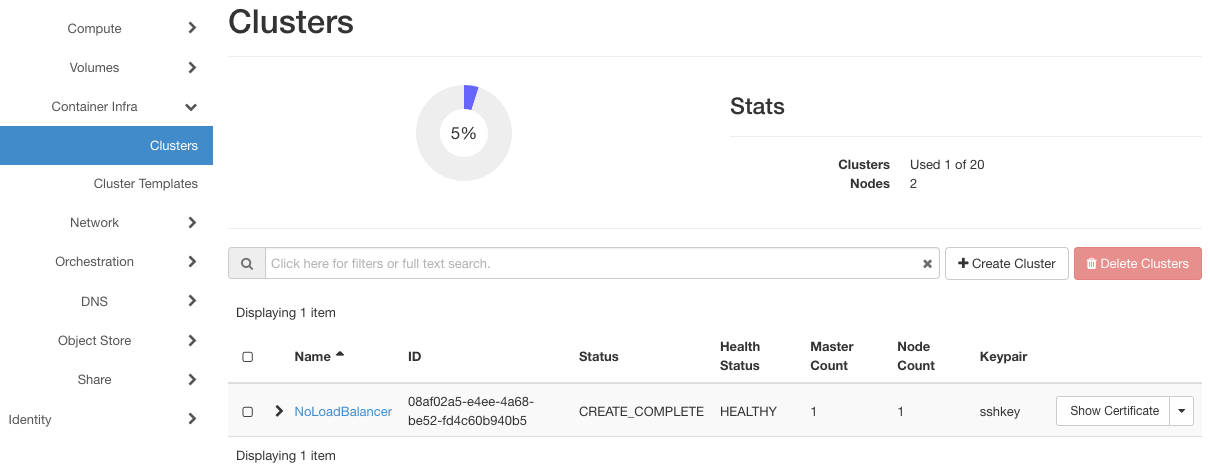
The result will be creation of cluster *NoLoadBalancer* as seen in this image:
To illustrate the problem, a very basic command such as
```
kubectl get pods NoLoadBalancer -o yaml
```
to list the pods in cluster NoLoadBalancer, will show an error message like this one:
```
Unable to connect to the server: dial tcp 10.0.0.54:6443: i/o timeout
```
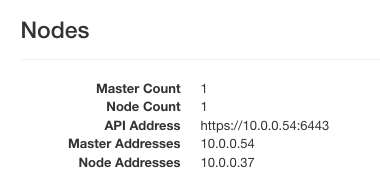
Addresses starting with 10.0… are usually reserved for local networks, meaning that no access from the Internet is enabled at this time.
Step 2 Create Floating IP for Master Node[🔗](#step-2-create-floating-ip-for-master-node "Permalink to this headline")
---------------------------------------------------------------------------------------------------------------------
Here are the instances that serve as nodes for that cluster:
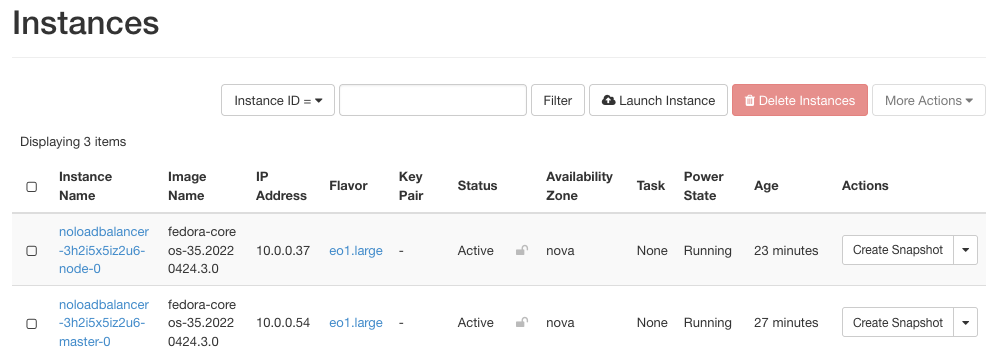
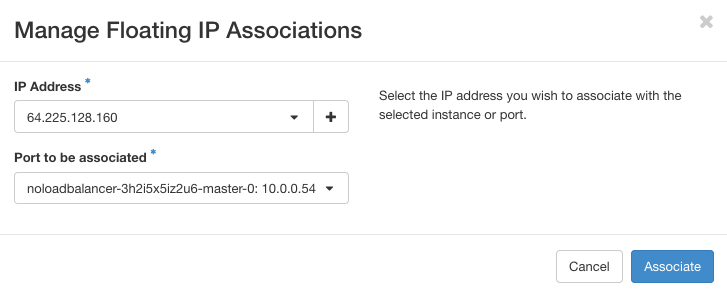
Master node is called *noloadbalancer-3h2i5x5iz2u6-master-0* and click on the right side of its row and click option **Associate Floating IP**.
To add the IP, click on a selection of available addresses (there may be only one but in certain cases, there can be several to choose from):
This is the result:

The IP number is **64.225.135.112** – you are going to use it later on, to change *config* file for access to the Kubernetes cluster.
Step 3 **Create config File for Kubernetes Cluster**[🔗](#step-3-create-config-file-for-kubernetes-cluster "Permalink to this headline")
---------------------------------------------------------------------------------------------------------------------------------------
You are now going to connect to *NoLoadBalancer* cluster in spite of it not having a load balancer from the very start. To that end, create a config file to connect to the cluster, with the following command:
```
connectVM coe cluster config NoLoadBalancer --force
```
It will return a row such as this:
```
export KUBECONFIG=/Users//config
```
Execute this command from terminal command line. A config file has also been created at that address. To show its contents, execute command
```
cat config
```
assuming you already are in the required folder.
Config file will look a lot like gibberish because it contains certificates, tokens and other rows with random content, some of them hundreds of characters long. Here is one part of it:
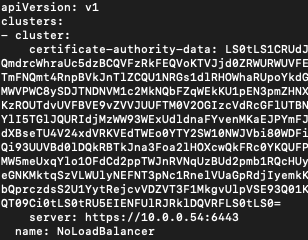
The important row here is this network address:
```
server: https://10.0.0.54:6443
```
Step 4 Swap Existing Floating IP Address for the Network Address[🔗](#step-4-swap-existing-floating-ip-address-for-the-network-address "Permalink to this headline")
-------------------------------------------------------------------------------------------------------------------------------------------------------------------
Now back to Horizon interface and execute commands **Compute** -> **Instances** to see the addresses for master node of the *NoLoadBalancer* cluster:

There are two addresses:
```
10.0.0.54, 64.225.135.112
```
Incidentally, the same **10.0.0.54** address is also present in the *config* file, ending with port address **:6443**.
Try now in terminal to execute **kubectl** command and see the result, perhaps like this one:
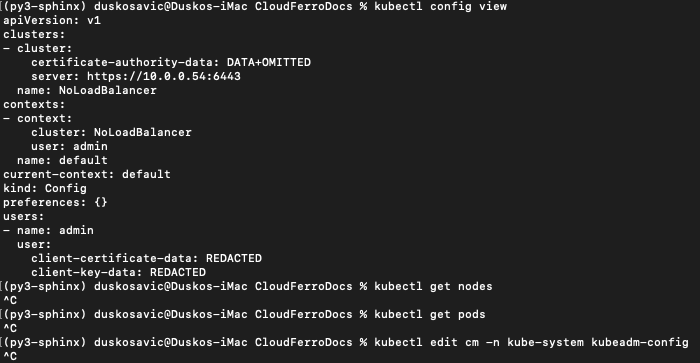
The access is there but the nodes and pods are still out of reach. That is because address **10.0.0.54** is internal network address for the cluster and was never supposed to work as the Internet address.
So, open the *config* file using *nano* (or other text editor of your choice). Swap **10.0.0.54** for **64.225.135.112** in line for server access. The address **64.225.135.112** is the address of the floating IP for master node and will fit in perfectly.
The line should look like this:

Save the edited file. In case of **nano**, those will be commands `Control-x`, `Y` and pressing `Enter` on the keyboard.
Step 4 Add Parameter –insecure-skip-tls-verify=true to Make kubectl Work[🔗](#step-4-add-parameter-insecure-skip-tls-verify-true-to-make-kubectl-work "Permalink to this headline")
----------------------------------------------------------------------------------------------------------------------------------------------------------------------------------
Try again to activate kubectl and again it will fail. To make it work, add parameter **–insecure-skip-tls-verify=true**:
```
kubectl get pods --insecure-skip-tls-verify=true
```
Or, try out a more meaningful command
```
kubectl get nodes --insecure-skip-tls-verify=true
```
This is the result of all these commands, in terminal window:
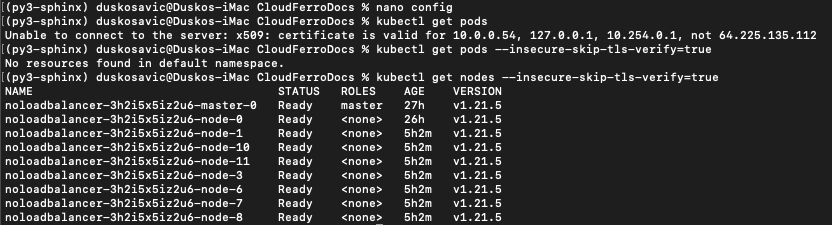
To continue working successfully, use normal **kubectl** commands and always add **–insecure-skip-tls-verify=true** in the end.
Attention
Using parameter **–insecure-skip-tls-verify** won’t check cluster certificates for validity. That will make your **https** connections insecure. Not recommended for production environment. Use at your own risk, maybe for some local testing or when you are just learning about Kubernetes and clusters.
For production, it is strongly recommended to check on field **Enable Load Balancer for Master Nodes** when creating a new cluster, regardless of the number of master nodes you have specified.